

Secure remote assistance
Remote support for Slikaj Račun
If you need help with setup or use, we can connect to your computer through RustDesk after arranging a support session. You can watch everything we do and end the connection at any time.
Opens the official rustdesk.com website
RustDesk
You control the connection
Before we start
- Arrange a support time with our team.
- Connect the computer to the internet and save your open work.
- Close private documents and applications that are not needed for support.
Install the application
Windows
Windows
- 1Open the official download page and download the 64-bit Windows file (.exe).
- 2Open your Downloads folder and double-click the downloaded file.
- 3If Windows displays a security prompt, confirm that the application is RustDesk before allowing it to run.
- 4For a one-time session, you may simply run RustDesk. If you select installation, follow the steps shown.
macOS
Mac
- 1Download the correct Mac version (.dmg) from the official page.
- 2Open the DMG file and drag RustDesk into the Applications folder.
- 3Open RustDesk and allow Screen Recording and Accessibility in System Settings.
- 4After changing permissions, you may need to close and reopen RustDesk.
How the connection works
1. Open RustDesk
2. Send the ID and one-time password
3. Approve the connection
4. Stay at the computer
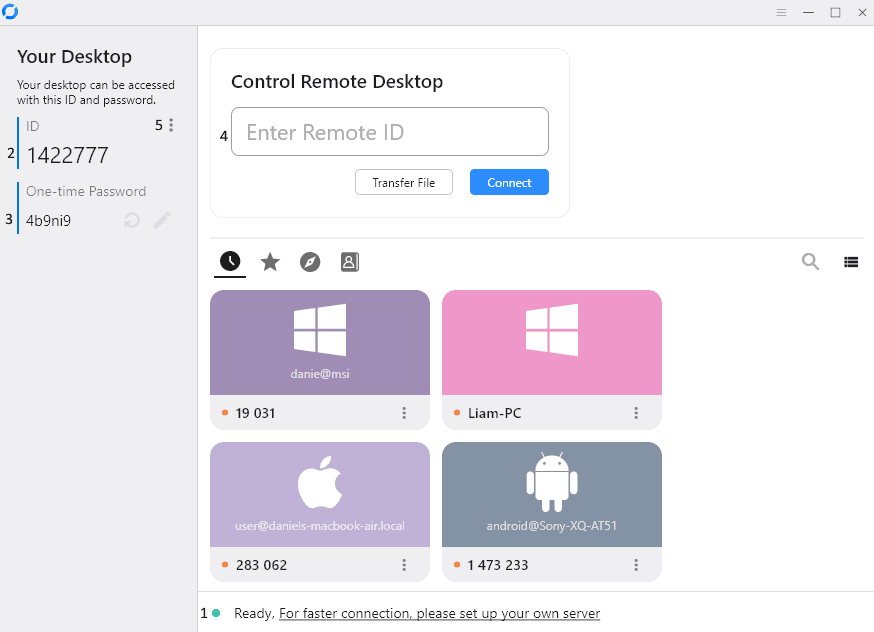
Where can I find the ID and password?
Your ID and one-time password are shown on the left side of the RustDesk window. They are marked 2 and 3 in the image. The box on the right is used to connect to another computer and is not required when receiving support.
What we need from you
- Name and company
- so we know who we are helping
- Phone or email
- to arrange the session and communicate during support
- A short problem description
- what is not working and what you have already tried
- RustDesk ID
- the number displayed in the application
- One-time password
- send it only when the arranged session starts
- Your permission
- confirm that you allow screen viewing or computer control
Important security information
- Allow remote access only after arranging it with our support team.
- We never ask for online banking, payment card, email or government-portal passwords.
- Stay at the computer and watch the work during the session.
- Close RustDesk when finished. We cannot reconnect without new access details and your approval.
Download RustDesk only from the official rustdesk.com domain or its official GitHub repository.
What can we help with?
setting up your user account and companies
configuring invoice delivery and destination email addresses
help with uploads, OCR processing and invoice review
basic browser, permission and connection diagnostics
Do you need remote support?
Contact support first and describe the problem. We will arrange a time and confirm when you can safely send the RustDesk ID and one-time password.